

On this page
- Quick summary
- Choose the right way to add the video
- Option 1: Use a standard YouTube embed
- Brief CMS considerations
- Place the video where it helps the reader
- Add accessible context around the embed
- Protect mobile usability and page performance
- What YouTube embedding can and cannot do for SEO
- Pre-publication checklist
- Troubleshoot common embedding problems
- When an automated content workflow can help
- Frequently asked questions
- Conclusion: Embed videos when they improve the article
YouTube embedding in articles is useful when a video demonstrates, explains, or reinforces the topic on the page. For most content teams, the best approach is a standard YouTube embed or your CMS's video component, supported by enough written context that the article remains useful without playback.
The right choice depends on the video's role. An embedded player is convenient for readers who want to watch immediately, while a linked thumbnail can reduce page complexity and give you more control over loading. Whichever method you choose, test the published page on mobile, provide accessible context, and do not assume that an embedded video automatically improves rankings.
Quick summary#

- Use a standard YouTube embed or CMS video component when in-page playback is central to the article.
- Use a linked thumbnail when performance, layout control, or a cleaner reading experience matters more than inline playback.
- Place the video beside the section it explains and preserve key information in text.
- Check captions, responsive sizing, mobile playback, permissions, and page speed before publishing.
- An embed can support relevance and usability, but it does not guarantee higher rankings or a Google video result.
Choose the right way to add the video#
There are three practical ways to insert a YouTube video in an article: a standard YouTube iframe or embed URL, a built-in video or rich-media component, or a linked thumbnail that sends readers to YouTube or opens the video separately.
| Method | Best for | Main tradeoff |
|---|---|---|
| Standard YouTube embed | Articles where readers benefit from watching without leaving the page | Convenient, but the player adds visual and loading complexity |
| CMS video component | Teams that want a guided publishing workflow | Ease depends on the CMS and its current features |
| Linked thumbnail | Pages where layout control or a lighter initial experience matters most | Readers take an extra step to watch |
Choose based on reader value rather than simply having a video available. If the video walks through the exact process described in the article, an inline player usually makes sense. If it is merely related, a descriptive link or thumbnail may be less distracting.
If you are comparing publishing platforms, check whether they support YouTube video embedding alongside content generation and distribution. The important question is whether the resulting page retains useful structure, context, and editorial control.
Option 1: Use a standard YouTube embed#

A standard embed is the most widely supported method for putting a playable YouTube video inside an article. YouTube's official instructions cover the current sharing and embedding process for videos and playlists. Google's YouTube embedding guidance is the best place to check the current interface if labels differ in your account.
- Open the YouTube video you want to use.
- Use YouTube's sharing options and select the embed option, or copy the appropriate embed URL.
- In your article editor, add the video through an embed, media, HTML, or custom-code element.
- Confirm that the preview shows the correct video and player area.
- Preview or publish the page, then test playback on a desktop and phone.
You do not need advanced development skills, but you do need the correct video source. A normal watch-page link and an embed URL are not interchangeable in every editor. If the player appears blank, revisit the source format and check whether embedding has been disabled for that video.
Google also documents parameters for embedded players. Use them only when you understand the result and when the setting supports the reader's needs. The YouTube embedded-player documentation explains the available parameters and limitations.
Brief CMS considerations#
WordPress, Webflow, Shopify, and Framer can support video publishing, but their editor labels and workflows may change. Look for an embed, video, rich-media, or custom-code element rather than assuming identical steps across platforms.
- WordPress: Check whether the editor accepts a YouTube URL directly or provides an embed block. Preview the article to confirm responsiveness.
- Webflow: Look for a video or embed element and check the published page for sizing and spacing issues.
- Shopify: Use the article editor's available media or HTML capability, then verify the blog template on mobile.
- Framer: Check for a video or embed component and confirm the published page preserves the intended width and aspect ratio.
These are areas to inspect, not guarantees about a particular interface. Platform documentation and your account's current features should take precedence over older tutorials.
Place the video where it helps the reader#
Place the video immediately after the section it explains, or before a procedure that readers may want to watch instead of read. Avoid inserting it at the top simply because it is available. The opening should establish the answer and purpose of the page before asking readers to watch.
Introduce the video in one or two sentences. Explain what it demonstrates, who it is for, and how it relates to the surrounding section. Keep the article complete without the player because readers may have limited bandwidth, may be unable to hear audio, or may prefer scanning text.
A concise summary, numbered steps, or transcript makes the video supplementary rather than essential. For more context on video embeds in search-focused content, see this practical discussion of embedding videos in articles.
Add accessible context around the embed#
An embedded player should not be the only way to access an important instruction. Include descriptive surrounding text and provide the same essential facts, steps, or warnings in the article itself.
- Use the video's available captions and check that they are accurate enough for the subject.
- Describe the video's purpose nearby instead of using a vague label such as “Watch this.”
- Provide a transcript, detailed summary, or equivalent written procedure when the video contains essential information.
- Use a meaningful heading or caption when the article contains several videos.
- Check that keyboard users can reach and operate the player controls.
If a video explains a product feature, the article should still state what the feature does and when to use it. This helps readers who cannot play the video and gives search engines clearer text to interpret.
Protect mobile usability and page performance#
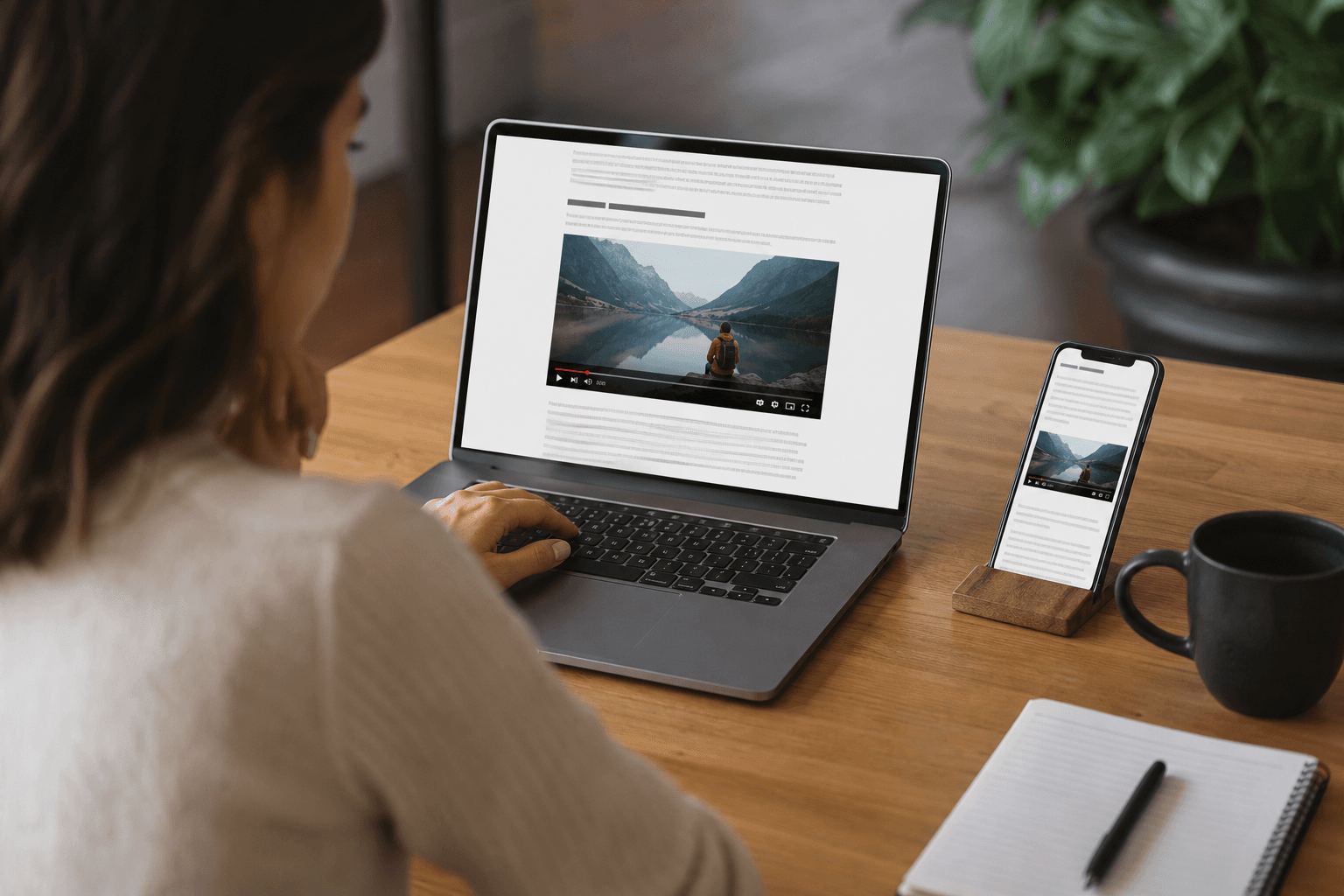
A YouTube player can make an article more useful, but unnecessary embeds can make a page feel crowded or load more media than needed. Use a responsive container so the player scales within the article column instead of creating horizontal scrolling.
Keep the player within the content area, preserve its aspect ratio, and avoid placing several players together unless each serves a distinct purpose. Test on a phone with a slower connection. Check whether the article remains readable while the player loads and whether the embed shifts important content.
If the video is optional, a linked thumbnail may be a better fit. For implementation ideas focused on reducing unnecessary page weight, review optimizing YouTube embeds without slowing a page.
Do not claim a specific speed improvement without testing the actual page. Performance depends on the CMS, theme, scripts, number of embeds, device, connection, and other page elements.
What YouTube embedding can and cannot do for SEO#
Embedding a YouTube video does not automatically improve rankings, increase organic traffic, or guarantee a video result in Google. The page still needs useful, relevant, crawlable content that answers the reader's question clearly.
An embed can support the page when it adds meaningful explanation and improves the experience for visitors. Clear surrounding text helps search engines understand the video's role, while a well-structured article gives the page value when the video is skipped. Google's video SEO guidance explains broader requirements for video visibility.
Think of the video as one supporting asset, not an SEO shortcut. Its potential value is strongest when the subject, title, surrounding copy, and page purpose align.
Pre-publication checklist#
- Relevance: Does the video directly explain or demonstrate something on the page?
- Source: Is the YouTube URL or embed source correct?
- Permission: Is the video available for embedding and appropriate for your audience?
- Context: Have you explained what the reader will learn?
- Equivalent content: Can readers understand the essential answer without watching?
- Accessibility: Are captions available, with a summary or transcript when needed?
- Responsive layout: Does the player fit without horizontal scrolling?
- Mobile playback: Does it load and play correctly on a phone?
- Performance: Have you reviewed the page after adding the embed?
- Final test: Did you test the published URL rather than only the editor preview?
Troubleshoot common embedding problems#
Blank player or incorrect video#
Check the source first. Make sure it points to the intended video and has not been truncated. If it still does not appear, try the CMS's native embed element or confirm that the video owner allows embedding.
Playback is blocked#
Some videos cannot play in an embedded context because of owner settings, regional restrictions, age requirements, or account controls. Test the video directly on YouTube. If playback remains unavailable, use a descriptive link and summarize the video instead.
The player overflows on mobile#
Inspect the embed width and its parent container. A fixed width can extend beyond the article column, so use responsive settings or a wrapper supplied by your CMS. Test portrait and landscape orientations.
The page feels slow or crowded#
Remove duplicate or low-value embeds and consider a linked thumbnail for optional videos. Then test the published page again.
When an automated content workflow can help#
For teams publishing frequently, the challenge is often consistency rather than copying an embed URL. UpliftAI's verified platform information lists relevant YouTube video embedding within automated SEO content and publishing workflows. It also lists CMS integrations including WordPress, Webflow, Shopify, and Framer.
That can help when video placement is part of a broader publishing process, but editorial checks still apply. Automation does not replace reviewing relevance, captions, written context, mobile behavior, or the final published page.
Frequently asked questions#
What is the easiest way to embed a YouTube video in an article?#
Use YouTube's embed option or embed URL, then add it through your CMS's embed, video, HTML, or rich-media element. Test the published page on desktop and mobile.
Should I use a YouTube iframe or my CMS's video component?#
Use the CMS component if it provides a reliable, responsive workflow and the controls you need. Use a standard embed when it is clearer or more portable.
Can embedding a YouTube video improve SEO rankings?#
Not automatically. An embedded video may add useful context and improve the experience, but rankings depend on the page's overall quality, relevance, accessibility, and technical health.
What should I do if a YouTube video will not play inside my article?#
Check the URL, test the video directly on YouTube, confirm that embedding is allowed, and try your CMS's native element. If playback remains unavailable, link to the video and summarize it.
How can I make a YouTube embed work well on mobile?#
Use a responsive player container, avoid fixed widths, test portrait and landscape views, and check for horizontal scrolling after publication.
Do I need to include a transcript when embedding a video?#
Include a transcript or detailed summary when the video contains essential information or instructions. At minimum, preserve the key answer in written content.
Conclusion: Embed videos when they improve the article#
The best method for YouTube embedding in articles is the least complex option that gives readers useful playback without weakening the page. Choose a standard embed or CMS video component for important demonstrations, and use a linked thumbnail when a lighter or more controlled experience is preferable.
Place the video beside the section it supports, explain what it contains, provide equivalent written information, and check captions, responsive sizing, mobile playback, and performance. Treat SEO as a possible supporting benefit, not an automatic result.
Businesses that want relevant YouTube video embedding included in an automated SEO content and publishing workflow can explore UpliftAI, which lists support for this capability and integrations with WordPress, Webflow, Shopify, and Framer.